




In today’s mobile-first world, your app shouldn’t grind to a halt just because your users lose their internet connection. Whether they’re in a parking garage, on a plane, or in an area with spotty coverage, Veryfi Lens’s Offline Mode ensures document scanning and processing continue seamlessly.
How Offline Mode Works
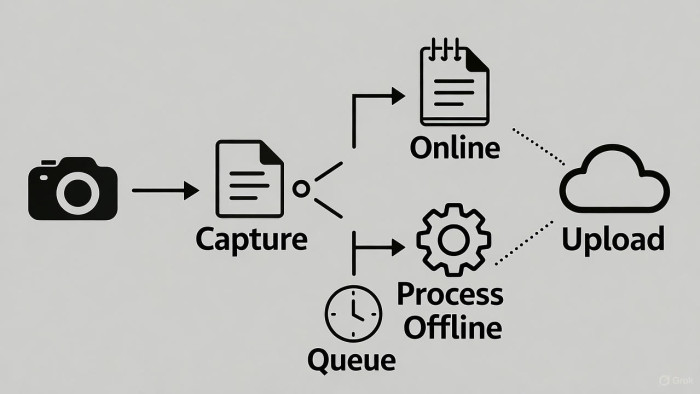
Veryfi Lens uses a smart queuing system combined with local machine learning algorithms to provide a robust offline experience. Here’s what happens under the hood:
When you’re offline, Lens can:
- Capture and crop images with full camera functionality
- Apply image enhancements like perspective correction and blur detection using local ML algorithms
- Extract data from credit cards using on-device processing
- Queue document processing tasks for later execution
The intelligent queuing system ensures no work is lost. Any tasks that require server-side processing are automatically queued and will execute once connectivity is restored. This means your users can keep working without interruption, and their data will sync automatically when they’re back online.
What Works Offline vs. Online
Available Offline:
- Image capture and cropping
- ML-powered image enhancements (perspective adjustment, blur detection)
- Credit card data extraction
- Task queuing for later processing
Requires Internet Connection:
- Document data extraction (receipts, invoices, bills)
- Initial SDK initialization and credential validation
- Processing queued tasks
Getting Started with Offline Mode
First-Time Setup
Before your app can work offline, you need to initialize Lens with an internet connection. This one-time setup authenticates your credentials and downloads the necessary ML models for offline processing.
// iOS - Initialize Lens (requires internet for first time)
VeryfiLens.shared().configure(
    clientId: "your_client_id",
    clientSecret: "your_client_secret",
    // Other configuration options
)
The validation_time_window property determines how long credentials remain valid before requiring re-validation. Plan this window based on your users’ typical usage patterns.
Managing the Queue
Check how many tasks are waiting to be processed:
// iOS - Get queued package identifiers
let queuedPackages = VeryfiLens.shared().utils.packagesInQueue()
When closing Lens, you’ll receive queue information:
{
  "queue_count": 2,
  "status": "close",
  "framework-version": "VeryfiLens 2.1.37 #7",
  "session_scan_count": 1
}
Handling Network Reconnection
Once your app regains connectivity, you have two options for queued tasks:
// iOS - Retry all queued packages
VeryfiLens.shared().utils.retryAllPackages()

// iOS - Or discard all queued packages
VeryfiLens.shared().utils.discardAllPackages()
Error Handling
When a task can’t complete offline, you’ll receive a clear error response:
{
  "package_id": "jiCIUMgD86mpjQUOCRyO",
  "document_type": "receipt",
  "status": "fail",
  "msg": "No Internet Connection"
}
Your app can use this to inform users that their document will process automatically when they’re back online.
Best Practices
Monitor network status proactively. Use your platform’s network reachability APIs to detect when connectivity is restored and automatically retry queued tasks.
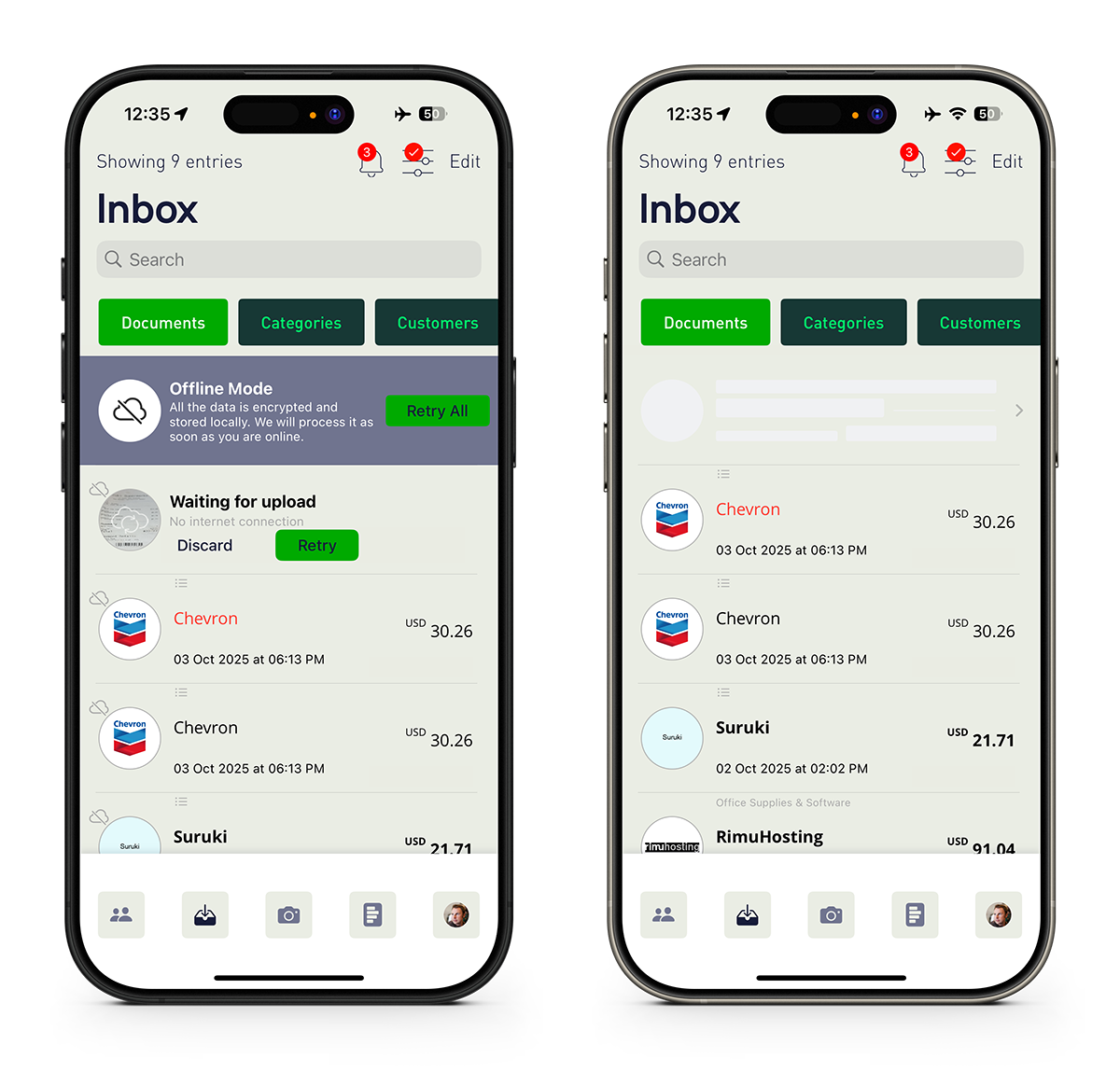
Set user expectations. Display visual feedback showing queued items and their status. Users appreciate knowing their work is safely stored and will sync later.
Configure validation windows appropriately. If your users frequently work offline for extended periods, set a longer validation_time_window to avoid re-authentication requirements.
Handle queue management gracefully. Provide users with options to view, retry, or discard queued items through your app’s UI.
Real-World Use Cases
Offline Mode shines in scenarios like:
- Field workers submitting expense reports from remote locations
- Retail employees processing receipts in areas with poor cellular coverage
- Delivery drivers capturing proof-of-delivery documents on the road
- International travelers managing expenses without data roaming
Frequently Asked Questions
Q: Does Lens need internet for the first launch?
A: Yes, the initial setup requires connectivity to authenticate credentials and download ML models. After that, offline functionality is available.
Q: How long do credentials remain valid offline?
A: This depends on your validation_time_window configuration. Once this window expires, some features may require re-validation.
Q: What happens to queued tasks if the app is closed?
A: Queued tasks persist across app sessions. They’ll automatically process when the app reopens with an active internet connection.
Q: Can I extract data from all document types offline?
A: Credit cards can be processed entirely offline. Other document types (receipts, invoices, bills) require internet connectivity for data extraction, but will be queued for processing when offline.
Q: Is there a limit to how many tasks can be queued?
A: The documentation doesn’t specify a hard limit, but you can check queue_count at any time to monitor queued items.
Q: What if I don’t want to process queued items?
A: You can call discardAllPackages() to clear the queue if needed. This gives you full control over task management.
Try It Yourself
Ready to implement offline functionality in your app? Check out the complete Veryfi Lens Offline Mode documentation for platform-specific implementation details and advanced configuration options.
Offline Mode transforms Veryfi Lens from a cloud-dependent service into a resilient, always-available solution that keeps your users productive regardless of connectivity. Start building more reliable document capture experiences today.