





Features Labs has now moved inside the Veryfi Lens Menu as Settings. This means all the great features we had in Features Lab are now a Setting. Plus there are a many more new features.
Have a feature you want us to add? Let us know.
How to get to new Features Lab
- Start Veryfi app and press the COLLECT button to start Veryfi Lens. Veryfi’s custom camera starts.
- Press the Veryfi Lens Menu icon (ellipsis / … / 3 dots) in the top far right corner to open the Veryfi Lens Menu.
- In the Veryfi Lens Menu, press SETTINGS.
Veryfi Lens Settings
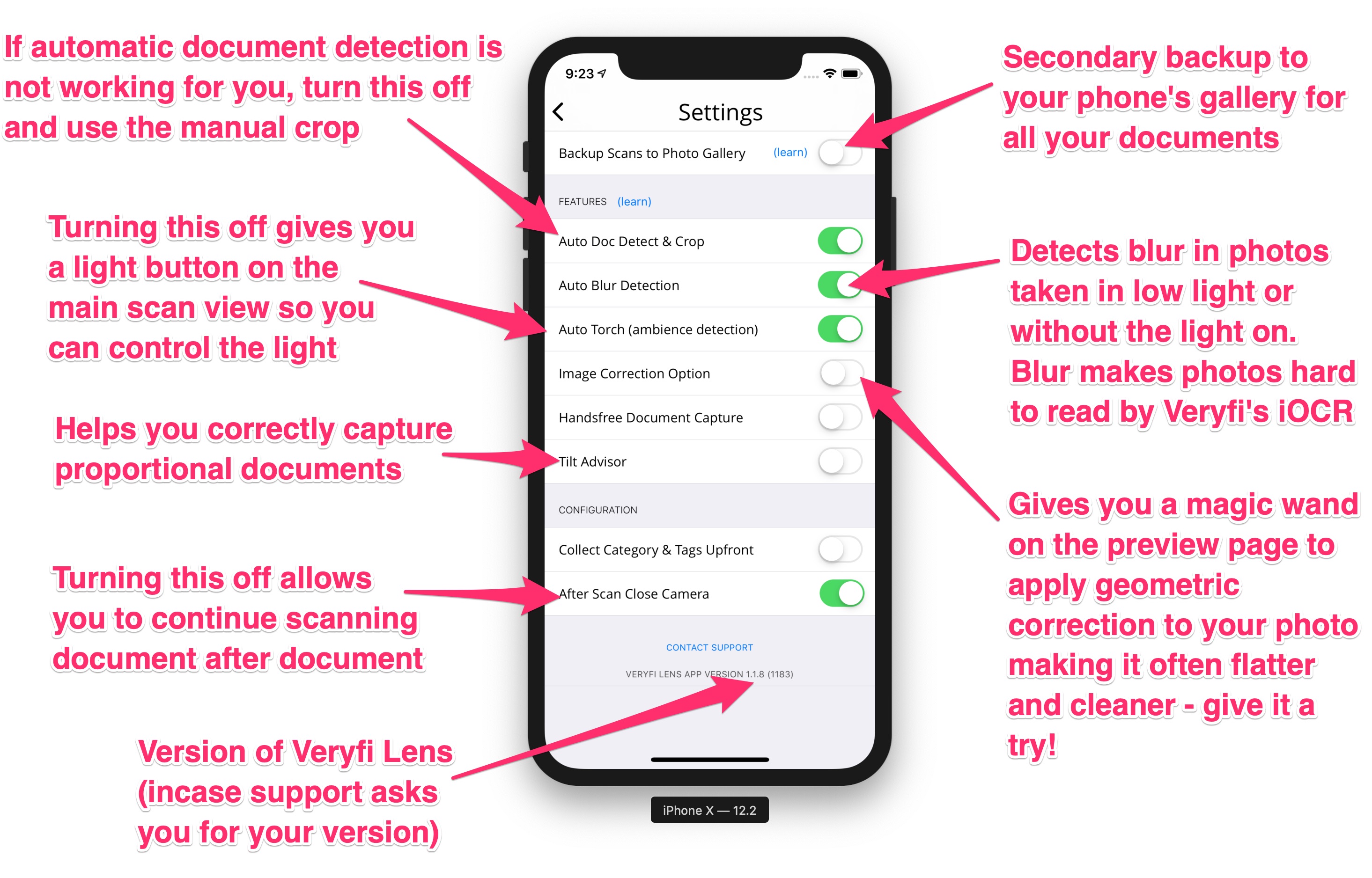
| Backup Scans to Photo Galery | As the name implies, every scan you make using Veryfi will now be backed up to your camera’s gallery folder. Default: OFF |
| Auto Doc Detect & Crop | Veryfi Lens will find and track a document (receipt, invoice or bill) infront of the camera so it can automatically crop the noise out of the phone. DEFAULT: ON |
| Auto Blur Detection | Blurred photos make reading document ineligible. This feature helps improve the quality of the scan you submit to Veryfi for real-time data extraction by informing you of blurred picture with an option to retry. DEFAULT: ON |
| Auto Torch (ambience detection) | If you don’t like your device’s light to automatically turn on when snapping receipts, then turn if off here. DEFAULT: ON |
| Image Correction Option | Inside the Lens app is a powerful image correction algorithm. Use it to fix distorted images. DEFAULT: OFF |
| Handsfree document Capture | If you don’t like pressing the big blue button to snap a photo of your receipts then let the software do it for you. Note, receipt detection has to be activated to help with the confidence levels when to auto snap a photo. DEFAULT: OFF |
| Collect Category & Tags Upfront | You can overwrite Veryfi’s machine allocated Categorization and Tagging by specifying what the document you are about to push should be Categorized and/or Tagged as. DEFAULT: OFF |
| After Scan Close Camera | The View to navigate to after the end of each Collection (scan). DEFAULT: ON |
If you have questions please also check out our Veryfi Lens FAQ page or contact our friendly support team on [email protected]