
In your email client Send a receipt attachment, or turn the open email into a PDF.
Capture Receipts from Email & Any Online Store
Capture receipts in one click. From Gmail, Outlook, Yahoo or any online store, straight into Veryfi. No downloads. No reprints. No manual uploads.
Get Started for Free Free Demo
Chrome · Firefox · One click
From the tab. Into Veryfi.
It’s a browser extension. It pins the Veryfi logo in your toolbar. Click it on any receipt and Veryfi captures the document for extraction, storage, and fraud detection. Install it from the Chrome Web Store or Firefox. See how it works.
What is a browser extension?
A browser extension is an add-on that lives in the toolbar. Veryfi’s add-on reads the receipt already open in the tab — an email, a printable invoice, or a checkout page — and sends that document to Veryfi.
There is no download, no reprint, and no manual upload. Vendor, total, and line items are captured, and the original page stays attached in the notes.
Did you know
Internet Explorer 4, in 1997, was the first major browser to support extensions. Firefox shipped with them in 2004. Chrome and Opera followed in 2009, and Safari in 2010.
What is this
A Veryfi browser add-on
It’s a browser extension. It pins the Veryfi logo in your toolbar. Click it on any receipt and Veryfi captures the document for extraction, storage, and fraud detection.
How to capture
Three ways to capture
The receipt is already on screen. In your inbox, on Amazon, or any checkout page — click the add-on and Veryfi takes vendor, total, and line items.
Buying on Amazon On a printable invoice, capture the whole page or crop an area.





Online Shopping Full-page PDF or select just the receipt on screen.
Free to install. A free Veryfi account is required to send documents.
How it works
How it works
Pin the icon, open a receipt, click once. Veryfi sends the document and extracts vendor, total, and line items.
1. Pin the icon Add Veryfi to your Chrome toolbar so capture is one click away.
2. Open a receipt Gmail, an Amazon invoice, or any online store checkout page.
3. Click — it’s in Veryfi We send the receipt and extract vendor, total, and line items.



Who It’s For

Bookkeepers, Accountants & Small Business Owners
Small business owners and the bookkeepers who support them lose hours every month downloading Gmail attachments, printing Amazon invoices, and manually uploading receipts one at a time. Veryfi’s Chrome Extension turns any open receipt — in Gmail, on Amazon, or on a checkout page — into extracted vendor, total, and line-item data in a single click. No downloads, no reprints, no re-typing numbers into a spreadsheet. Close the books faster, cut manual data entry, and keep every transaction tied to its original email or order with zero extra software to manage.
Employees at SMBs & Startups
Employees buying SaaS subscriptions, office supplies, or booking travel online end up with receipts scattered across their inbox and browser tabs — and a monthly scramble to submit expenses before the deadline. The Chrome Extension captures a Gmail confirmation, an Amazon invoice, or any online store’s checkout page the moment you’re looking at it, so nothing gets lost or forgotten. One click sends the receipt straight to Veryfi with vendor and total already extracted, making expense reports a five-minute task instead of a Friday-afternoon chore.
Freelancers & Solo Consultants
Freelancers and independent consultants juggle client-billable purchases with no finance team to catch what’s deductible or reimbursable. Without an automated AP pipeline, every receipt has to be captured by hand — so the Chrome Extension is built for exactly that: open the receipt, click once, and add a quick note like client name, project, or “reimbursable” before it’s sent to Veryfi. Every transaction stays organized and tagged from the moment it’s captured, making tax season and client invoicing far less painful.
Individuals Tracking Personal Spend
Budget-conscious shoppers who want a clear picture of where their money goes end up with purchase history scattered across Gmail confirmations, Amazon order pages, and dozens of online stores — far too fragmented for a spreadsheet to keep up with. The Chrome Extension turns any of those into a captured, categorized transaction in one click, no manual typing required. Over time it builds a searchable record of vendor, amount, and item-level detail, making it easy to spot subscription creep, track a savings goal, or just know what was actually spent last month.Frequently Asked Questions
-
Why install it
Expense and AP work usually dies in the browser: a receipt sitting in Gmail, an Amazon invoice you can only print, a “thank you” page that will be gone after you navigate away. This extension is built for that moment. Click the toolbar icon, add an optional note, and Veryfi processes the document. You get a notification with the vendor and total, plus a link to open the transaction in the Veryfi Hub.
-
What you can capture
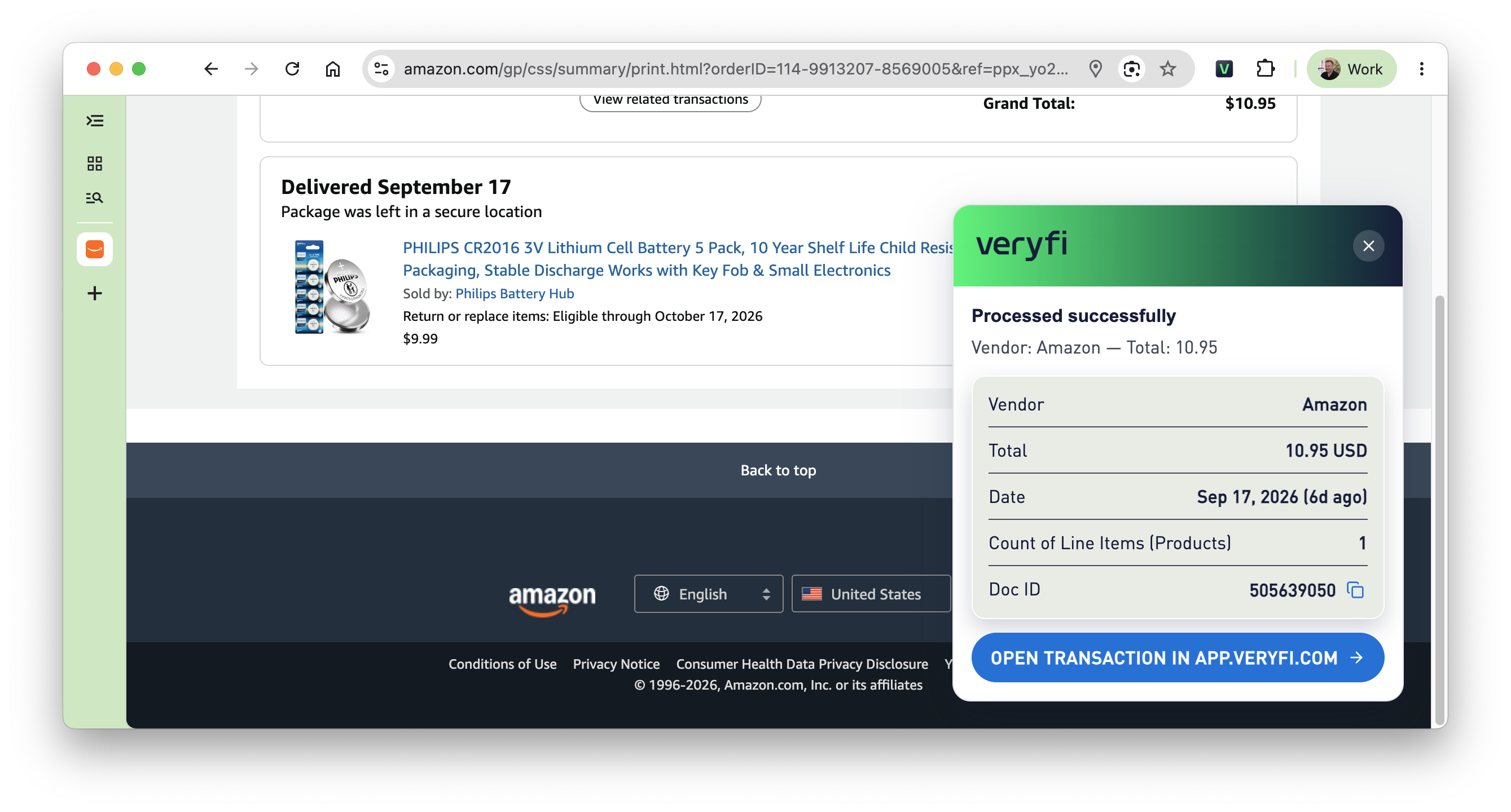
• Gmail — Open a message and click the icon. If the email has a receipt or invoice attachment (image or PDF), that file is sent. If there is no attachment, the open email is turned into a layout-preserving PDF (headers, tables, and inlined images) and sent instead. • Several attachments in one email — Choose one transaction (files are zipped and sent together) or separate transactions (one Veryfi document per file). Uncheck anything you do not want to send. • Amazon printable invoices — On an order’s printable invoice / order summary page, choose whole page (order summary as a PDF) or select an area (crop a screenshot). Order ID and order date are stored in the document notes. • Any other store or receipt page — On a normal http(s) page, choose full-page PDF or select an area screenshot. Page title and URL are stored in the notes.
-
What happens after capture
A small panel in the page shows progress for about 2 seconds, then done. You can add optional notes before send (for example, client, project, or “reimbursable”). Gmail From / To / Subject / Sent time are written into Veryfi notes so the document stays tied to the email. Attachments over 10 MB are rejected before upload, with a clear error.
-
Setup
You need a Veryfi account and API credentials (Client ID, Username, API Key) from Settings → Keys in the Veryfi portal. Enter them in the extension Options page, or connect from app.veryfi.com when the portal offers it. Credentials stay in this browser profile (chrome.storage.local). They are not synced and are sent only to api.veryfi.com.
-
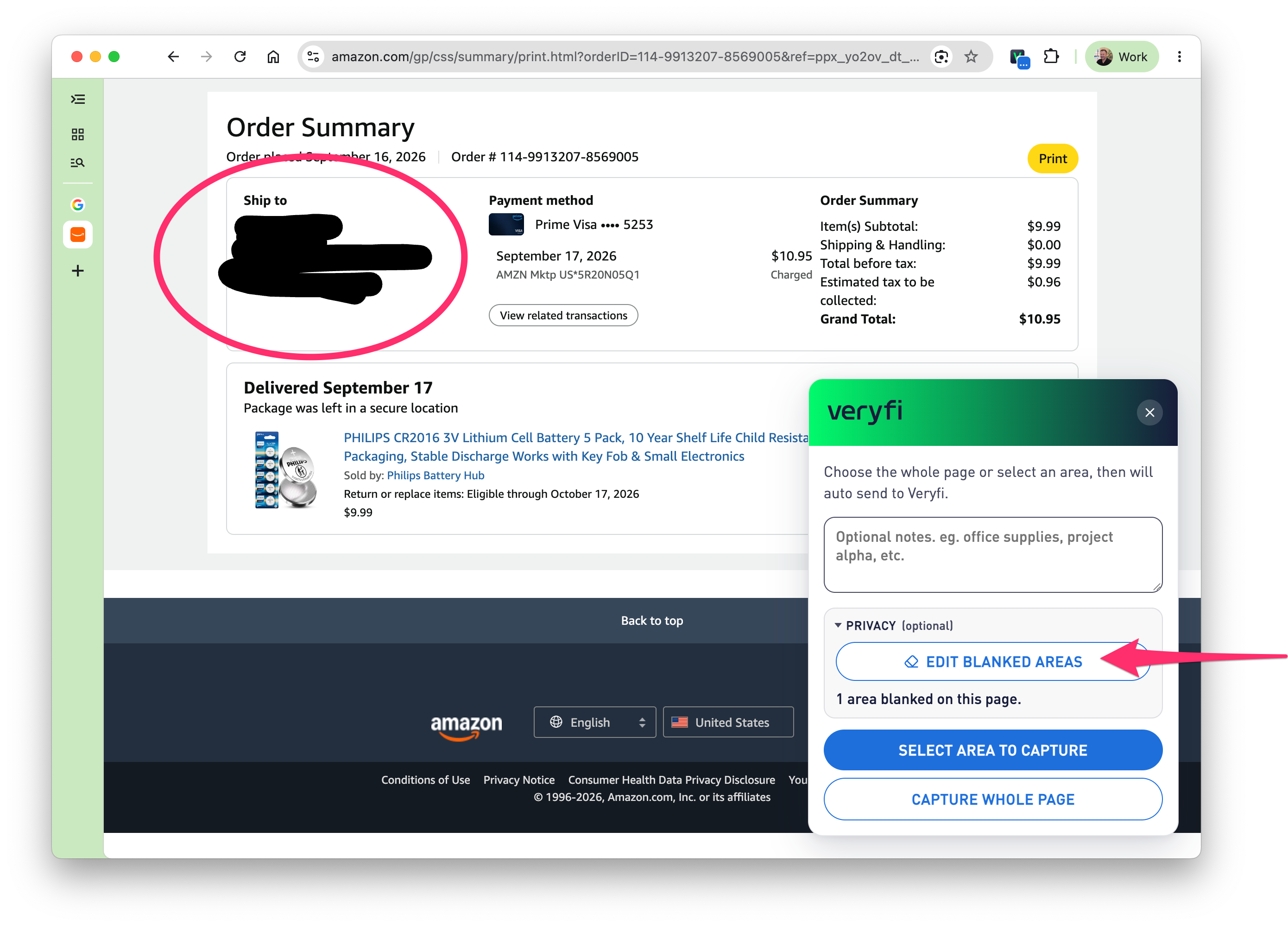
Privacy / blank out mode?
Yes an optional privacy mode can be used to blank out sensitive or private information before submitting it to Veryfi AI for extraction and processing.
-
Where do I get the Veryfi Chrome Extension from?
Go here https://chromewebstore.google.com/detail/veryfi-receipt-capture/gjglnmfgedalljncgggfipjklbmhfnkc and press the blue “Add to Chrome” button. That’s it!
-
How to uninstall?
Head over to your browser’s settings > extensions and then press “uninstall”. It’s that easy.
-
Can I capture multiple attachments?
Yes. When multiple attachments are detected, you will be presented with an option to choose to include as many as you like in the capture process. Each attachment can be treated as a separate transaction or bundled as one, allowing you to process receipts at volume from 1 email.

Official downloads
Get the browser extensions
The receipt is already on the screen. Stop downloading the attachment, reprinting the Amazon invoice, or losing the thank-you page. One click — vendor, total, line items — in Veryfi.
Free to install. A free Veryfi account is required to send documents.